Chatting in Teams? How to turn a message into a task
Also a fan of the Teams chat for asking short questions to colleagues? It significantly reduces mutual email traffic and contributes to more efficient communication. However, sometimes a message requires further action. So how do you handle that conveniently? In this blog post Gerben tells you how to turn a chat message into a task and how to stay 'on top of your game' in Teams.
Outlook vs Teams
In Outlook and Teams, creating a task from a message works a little differently. In Outlook, you can mark emails that require action with a flag. At that point, your message will show up in your "To Do/Tasks list" under the "Email with Flag" row. Or you can move the email to a separate folder in your mailbox.
However, many people don't know that you can also turn a chat message into a task in Teams. Useful when a chat requires action at a later time or you want to be reminded of it at a later time.
Creating a task from a chat message
Here's how it works:
Step 1
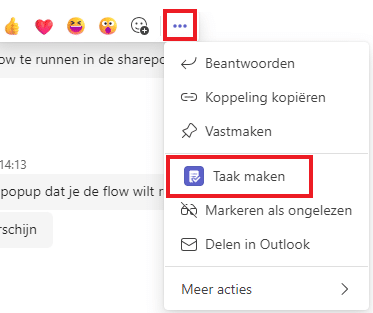
Hover your mouse over a message in a Teams conversation and select the ellipsis (...)
Step 2
Choose Create Task (it may be under more actions)
Step 3
In the new pop-up screen, enter the title of your task and customize the options to suit your needs. The choice under "Create in" determines where the task will be placed.
- If you select "Tasks," the task will be added to your personal task list. You can edit the task name, priority due date from this window.
- If you choose the name of a team channel, the task will be added to an "action list" in 1 of the Teams. This option also allows you to assign the task to a team member.
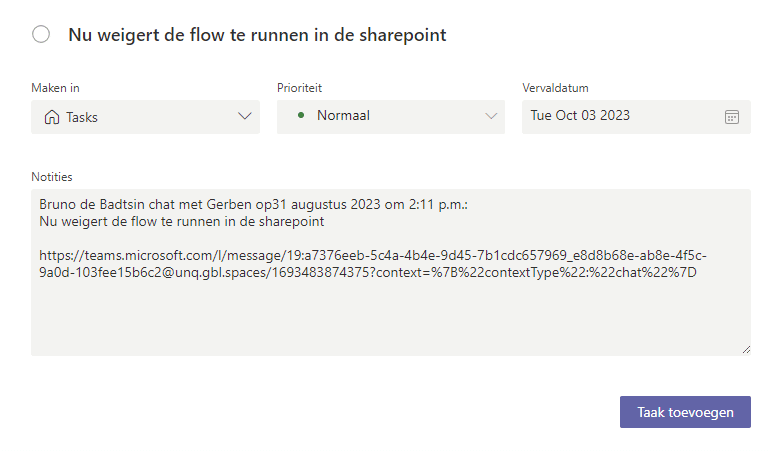
Note! With both options, the taak also displayed in the chat for others to see.
Step 4
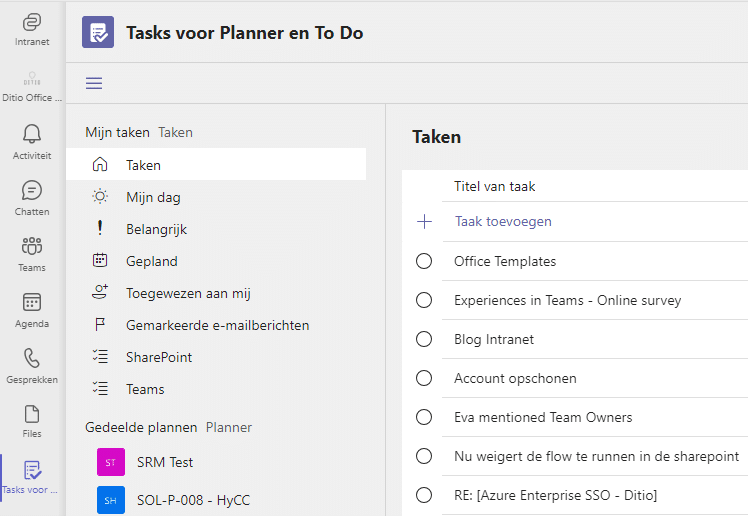
The task you just created is now visible in the Tasks for Planner and To Do app within Teams. If there is a due date assigned to the task, you will receive a reminder on that day, just until the task is completed.
Bonus tip
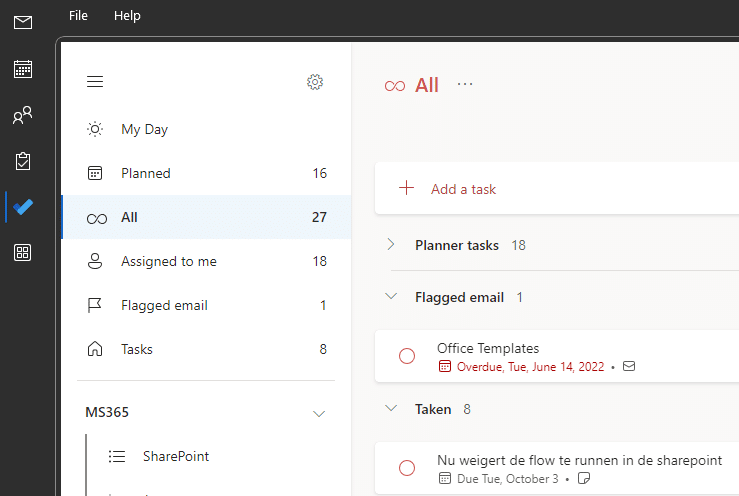
Did you know that all tasks in Teams are also visible in Outlook? To do so, go to the left menu bar and click on the 'To Do' app. Then you can go to 'All' to get an overview of all marked emails and tasks in Teams and Outlook!
Getting Started
So much for my tips on creating tasks from messages in the Teams chat. If you follow the steps you should succeed. Thanks for reading this blog!
Getting Started
So much for my tips on creating tasks from messages in Teams chat. We've summarized them one more time in a handy video. Good luck!
Want to know more about Teams?
Of course, with questions or comments, you can always email me at gerben.jacobs@ditio.nl. Or send me a message on Linkedin. Also if your organization is already working with Teams but you feel it could be better and more efficient, feel free to contact us. We have a lot of experience in (strategically) setting up Teams and Sharepoint environments and providing on-the-floor training. You can call 085 210 10 30 or fill out the contact form.