
Vacation or leave of absence? 4 tips for setting up your absences in Teams
We think Microsoft Teams is super convenient! With Teams, you have everything and everyone at your fingertips on your PC/laptop and Smartphone. Being able to quickly connect and call/chat with colleagues and external partners is ideal. You can even see whether someone is available or not. Going on vacation or absent for a longer period of time for another reason? With these 4 tips, your Teams account will be set up correctly in no time.
Tip 1: Put your absence in your Outlook calendar
In daily work, for many, Teams has become a substitute for e-mail and other forms of communication. But what about when you're not at work due to vacation, illness or pregnancy, for example?
What's handy to know is that Teams and Outlook communicate with each other. In fact, your calendar in Outlook determines your status in Teams. The first tip is therefore: indicate in your Outlook calendar that you will be absent during that period. You can do this by putting your vacation or leave in your Outlook calendar and choosing the view 'not present' (purple).
Teams status automatically updated
Because you are listed as absent in Outlook, your status will automatically change that period in Teams and be displayed as absent. This is easy for others to see by the icon next to your photo; a purple circle with an arrow.
Note! If you log into Teams during your absence, as long as you are logged in, your status changes to available and the icon becomes a green check mark. As soon as you log out, it is automatically reset to absent.
Tip 2: Turn on your Out of Office in Outlook
Also, turn on your Out of Office (or automatic replies when you are away) for the period you are away. It is useful to indicate in your message when you will be back and who will replace your work if necessary. Here you can distinguish between your internal and external message. Because you turn on your Out of Office in Outlook, people in Teams will also see your message.
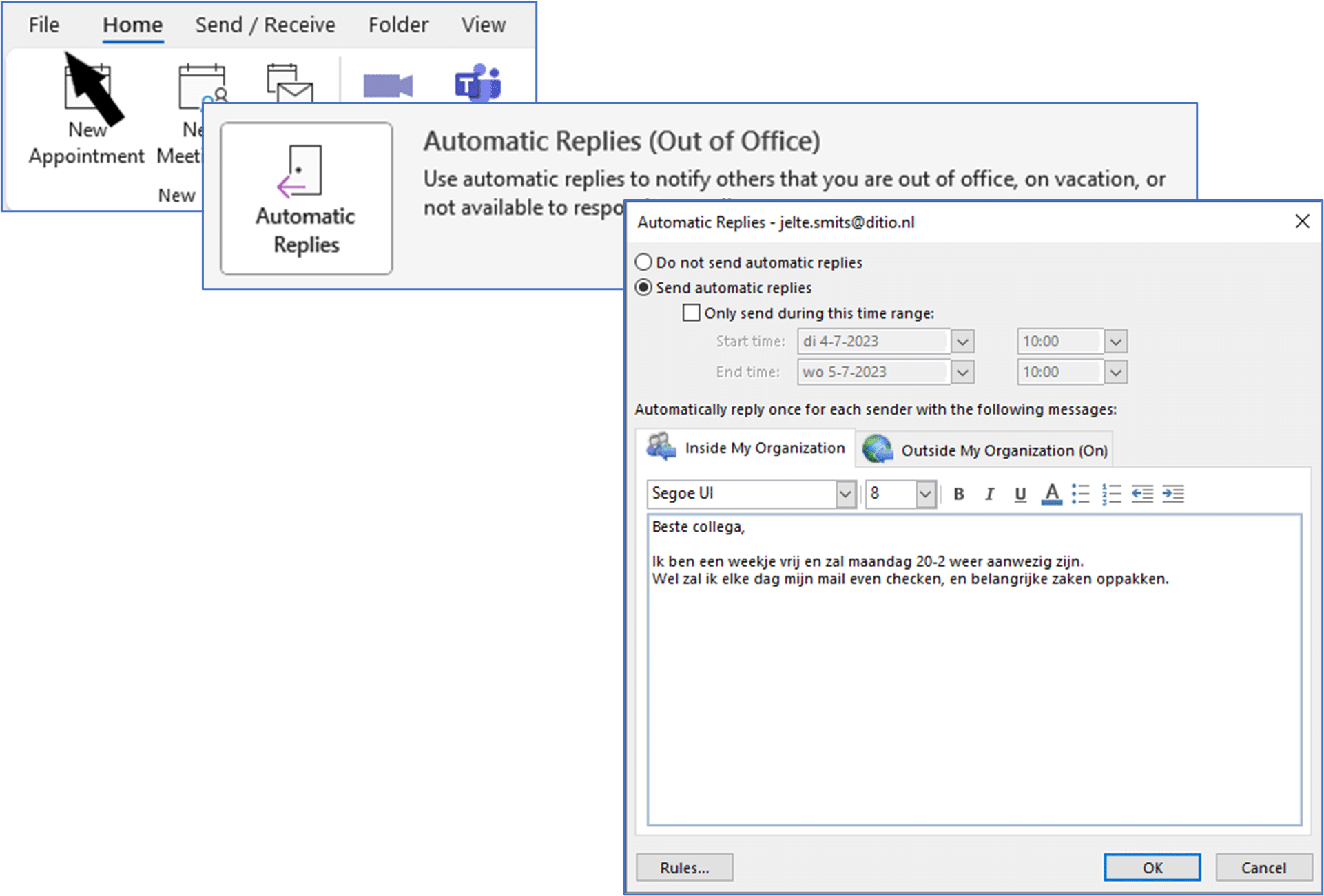
Here's how to do this on your desktop
To set up your out-of-office message using the Outlook desktop client, follow these steps in the new Outlook app:
1: Click File and go to Settings
2: Under your account, select "Automatic replies"
3: Set up your automatic reply, also specifying during which dates this should happen and whether an email should also be sent to people outside your organization.

To turn on your out-of-office message using the Outlook desktop client, follow these steps in the old Outlook app:
1: Click on File/File
2: Select automatic responses (out of office)
3: Set up your automatic reply, also specifying during which dates this should happen and whether an email should also be sent to people outside your organization.
Here's how to do this on your smartphone
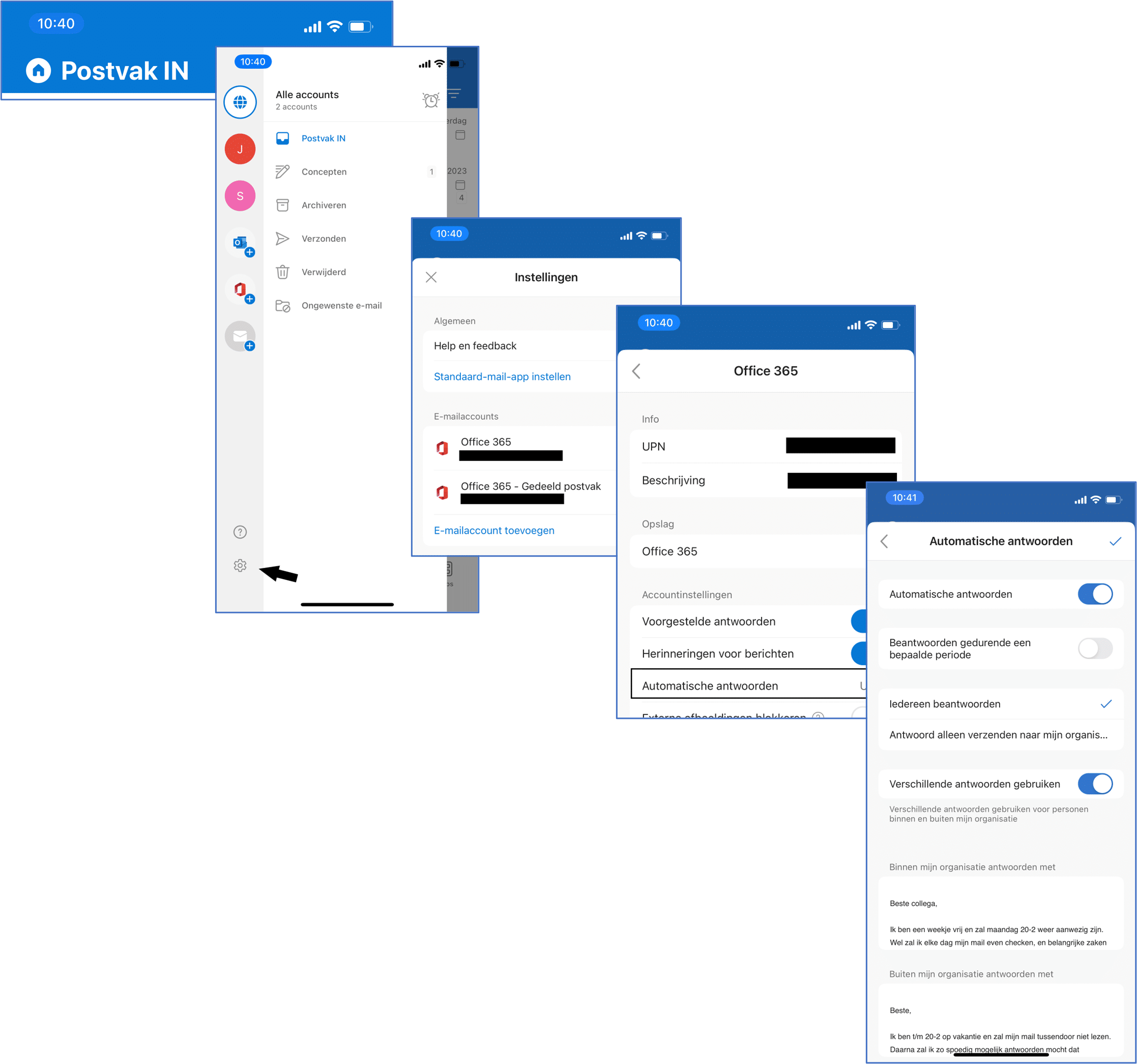
It is also very easy to turn on out of office via Outlook's mobile app:
1: Open the app on your phone
2: Click the button to the left of Inbox (Home icon)
3: Click on the cog icon at the bottom to access the settings
4: Select the account for which you want to set up automatic replies (out of office)
5: Select auto reply and compose your message here
Bonus tip! To avoid stress, turn on Out of Office the day before you leave. That way you can finish your work quietly and transfer it if necessary. You can also leave Out of Office running on the day you start again. It's nice to be able to start in peace and not be overwhelmed by all kinds of messages.
Tip 3: Turn off Teams notifications on your phone
If you also have Teams on your phone, then despite your Out of Office status, you can still get notifications and chats from group chats, for example. If, like me, you only use 1 phone for business and personal, it's great to turn off these notifications during the vacations. Against my better judgment, I occasionally check my business mail and Teams, but at times that are convenient for me. So for a little peace of mind, you don't have to rigorously remove the Teams App from your phone!
Here's how to turn off Teams notifications on your mobile
1: Open the Teams App on your mobile
2: Go to your own photo to open your profile
3: Tap notifications to manage your notifications
4: Turn off your notifications
Tip 4: Turn your notifications back on, too!
Back to work? Then don't forget to turn notifications back on. Unlike your Out of Office, this is not automatic. Otherwise it will stay nice and quiet for a long time!